transfers

Poult Transfer transactions are used to transfer poults from one internal
hatchery to another internal hatchery. The transaction is created for
the hatchery that is receiving the poults. The corresponding transfer-out
transaction will be automatically created.
A Poults Hatched transaction
must be created before creating a Transfer transaction.
The following procedures are outlined in the Transfers document:
Create
a Poult Transfer
Transfer Header
The poult transfer header contains the base data to outline the transfer.
The header is divided into three sections to group the data.
- In TMTS>HIM>Transactions>Poults,
select Transfers.
- In the Poult
Transfers main index, click
 to create a
new poult transfer.
to create a
new poult transfer.
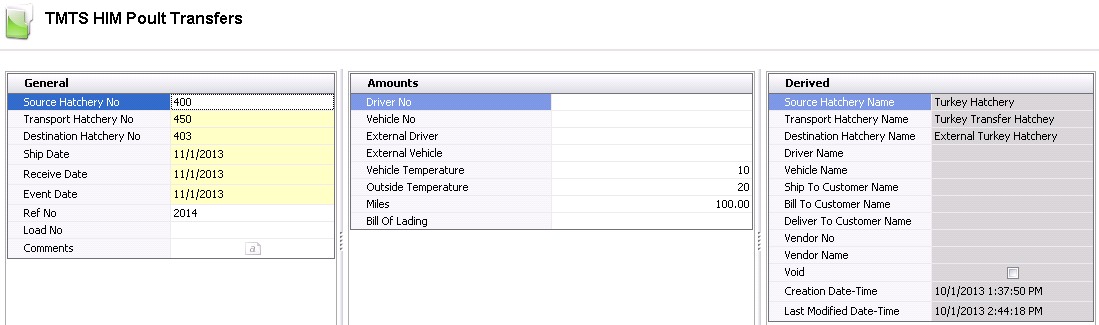
General
- From the Source
Hatchery No drop-down menu, select the entity that will be
shipping poults to the hatchery.
- From Transport
Hatchery No, select the transport hatchery where the poults
will flow through while moving from farm to hatchery.
- From Destination
Hatchery No, select the hatchery that will be receiving the
poults.
- In the Ship Date
field, enter the date the poults will be shipped out.
- In the Receive
Date field, enter the date the poults will be received.
- Event Date
displays the date the transaction occurred. Event Date defaults from
Ship Date with an option to modify. The event date does not affect
inventory or accounting transactions.
- Ref No
is an optional field to enter a unique reference number to identify
the transaction. This can either be entered manually or automatically-generated.
- Load No
is an optional field to enter the load number of the poult shipment.
- Selecting the Void
flag will cancel the transfer.
Amounts
- Driver No
is an optional field to identify the driver who will be transferring
the poults. Drivers must be set up prior in: Admin>Business>General>Definitions>Drivers.
Vehicle
No is an optional field to identify the vehicle used to transfer
the poults. Vehicles must be set up prior in: Admin>Business>General>Definitions>Vehicles.
External
Driver is an optional field to identify an external driver
that will deliver the product. This is a text field with no validation.
External
Vehicle is an optional field to
identify an external vehicle that will deliver the product. This is
a text field with no validation.
Outside
Temperature is used to enter the recorded external temperature
of the vehicle. Outside Temperature can be entered in either oF or
oC.
Vehicle Temperature
is used to record the trailer temperature and can be entered in either
oF or oC.
Enter the number of Miles
the vehicle will travel to the destination hatchery.
Bill
of Lading is used to enter the bill of lading reference for
the receiving line.
Derived
The details in the Derived tab will default in from information entered
in the other two tabs, with no option to modify.
- Source Hatchery
Name displays the name of the source from where the poults
are coming.
- Transport Hatchery
Name displays the name of the transport hatchery.
- Destination Hatchery
Name displays the name of the destination hatchery.
- Driver Name
displays the name of the driver.
- Vehicle Name
displays the name of the vehicle.
- Ship To Customer
Name displays the name of the ship-to customer.
- Bill To Customer
Name displays the name of the bill-to customer.
- Deliver To Customer
Name displays the name of the deliver-to customer.
- If the product was purchased, Vendor No indicates where
it was purchased from.
- Vendor Name
displays the name of the vendor.
- Creation Date-Time
indicates the date and time the transaction was created.
- Last Mod Date
indicates the date and time the transaction was last modified.
Transfer Details
- In the Poult Transfers screen, click to add a new external transfer
product.
- The Transfer In Poults dialog box will appear
with all current poult products available for transfer.
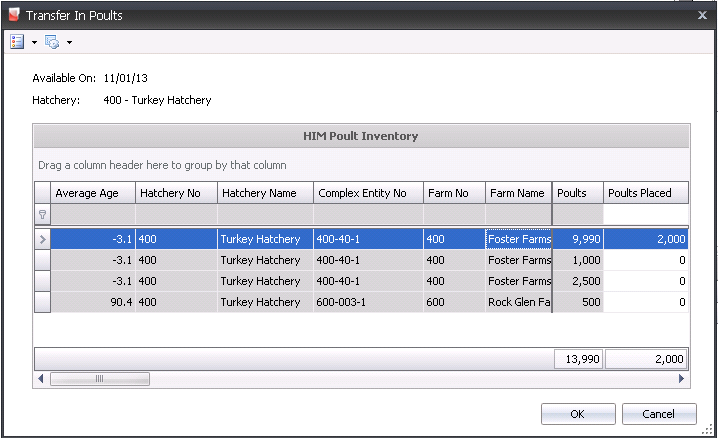
- Select the required product to be transferred
and, in the Poults Placed
field, enter the number of poults to be transferred, and then click
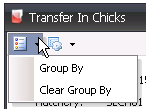
'OK'. *Note: There is
also an option to group by the selected fields, which can be utilized
by clicking on the Options button.
- The fields in the Poult Transfers screen will
auto-populate.

- Complex Entity
No identifies the entity that produced the poults.
- Farm Name
displays the name of the farm where the eggs were produced.
- Breed No
is used to identify the breed of the poults..
- Breed Name
displays a description of the breed.
- Generation Code
is used to identify the generation of the poults.
- Hatch-Hatchery
No identifies the hatchery that hatched the poults.
- Hatch-Hatchery
Name displays the name of the hatchery that hatched the poults.
- Egg Product No identifies the egg product
from where the poults originated
- Egg Product Name
displays a description of the egg product.
- Egg Class No
indicates the type of class of the eggs from where the poults originated.
- Egg Class Name
displays a description of the egg class.
- Egg Class Category
identifies the type of eggs.
- Hatch Date
displays the date the poults hatched.
- Hatch Category
No identifies the type of poults being transferred.
- Hatch Category
Name displays the name of the hatch category.
- Hatch Category
Type identifies the type of poults.
- Sex indicates
the sex of the poults.
- Poult Type
indicates if the transfer is BIM or TIM poults based on the
generation of the parent entity. If the generation is Parent, the
poult type will be TIM. All other generations will be BIM.
Transfer Date
displays the date the eggs were transferred to the hatchery.
Poults
displays the number of poults to be transferred to the hatchery, and
will default according to what was entered in the inventory dialog
box.

Set Date
indicates the date the eggs were set.
Production
Date indicates the date that the eggs were produced, to determine
egg age.
Received Date
indicates the date the eggs were received at the hatchery.
Hatcher No
identifies the hatcher where the eggs were hatched.
Hatcher Name
displays the name of the hatcher.
Setter No
identifies the setter in which the eggs were set.
Setter Name
displays the name of the setter.
- Setter Type indicates
the type of setter.
- The Consignment
flag will be selected if the eggs were purchased using a Consignment
Purchase Order.
- Animal Product
No identifies the type of animal product being transferred.
- Animal Product
Name displays a description of the animal product.
- Contract No
is an optional field to enter the grower contract number.
- Sales SKU No
identifies the sales SKU number of the product, if applicable.
- Sales SKU Unit
Description displays a description of the sales sku unit.
- Sales SKU Units
Per displays the number of units in the sales sku.
Once the external transfer has been created,
click  to save the transaction.
Post
a Poult Transfer
The posting process locks the transfer to prevent edits, and creates
the journal transaction. The UnPost option unlocks the transfer and reverses
the journal transactions.
- In the Poult Transfers main index, select the
required poult transfer and right-click to select 'Post.' Alternatively,
click the green check mark
 in the top menu bar and select 'Post'.
- To un-post a poult transfer record, select the
required transfer and right-click to select 'Unpost'. This process
will set the record status to 'Reversed' status, which allows the
record to be edited.
Journal
Transaction
When the receiving transaction is posted, the journal transaction is
created to debit the hatchery inventory and credit the accrued payable
transaction. The posting process creates the journal transaction. The
journal process will debit the hatchery poult inventory and credit the
system offset account.
| DEBIT |
Hatchery
Poult Inventory |
| CREDIT |
System
Offset Account |