
Facility transfers are used to transfer feed formulas from mill to mill. The source mill will be credited at the defined feed formula price and adjusted to actual cost at global post. The destination mill will be debited at the defined feed formula price with no adjustment to actual cost. Internal add-ons can be defined for expenses such as storage or internal delivery. External freight can be added to the transaction using a purchase order. Weights are incorporated into the transaction so that scales can be used at source and destination mills. Silo and lot tracking can be used in facility transfers. The Facility Transfer involves two transactions. First the feed formula must be transferred out of the source mill and then transferred into the receiving mill. There is a registry switch in Product Type that allows the receiving transaction to be automatically created rather than manually having to create the receiving transaction.
A Finished Feed Receiving transaction must be created and posted before a Finished Feed Facility Transfer can be created.
The following procedures are outlined in the Facility Transfer document:
The first stage in the process is to create the transfer out from the source to the destination facility.
The first step in the facility transfer process is to create the transfer-out facility transfer. The transfer header in this transfer record contains the base data to outline the facility transfer. The header is divided into three sections to group the data:
 to create a new
facility transfer transaction.
to create a new
facility transfer transaction.
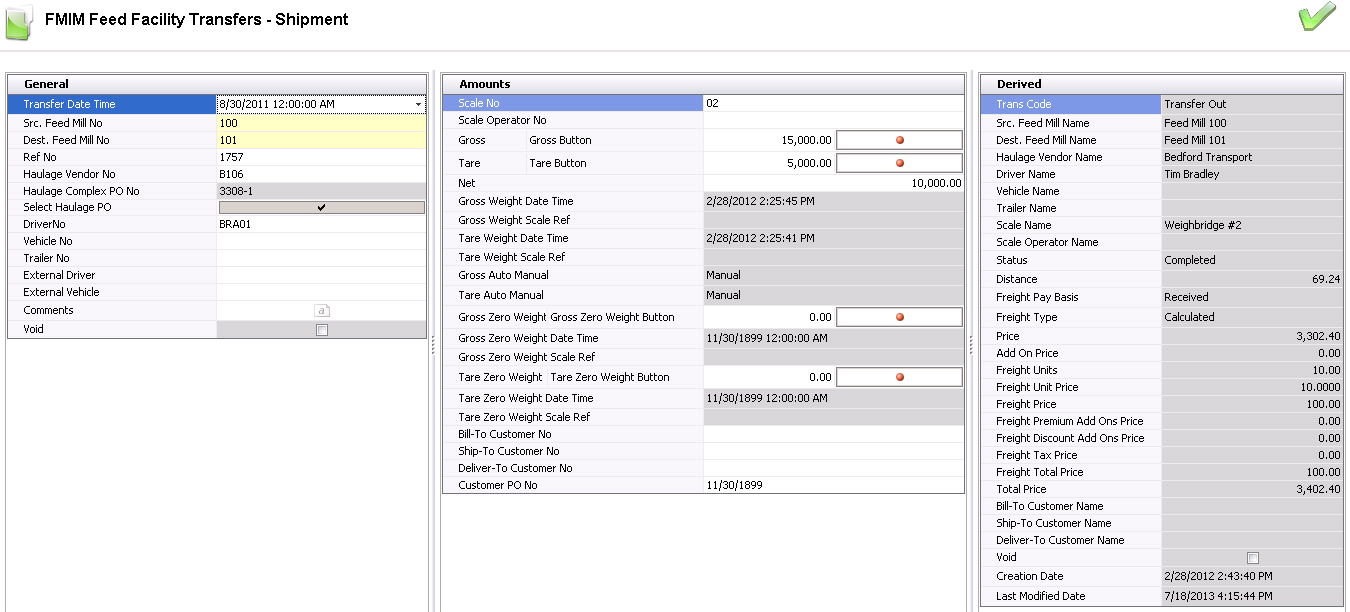
The fields in the Amounts tab are optional and only populated if the weigh scale is used in the Facility Transfer transaction.
Gross Weight Scale Ref displays the reference number for the gross weight scale reading.
Tare Weight Date Time displays the date and time that the tare weight was recorded at the scale.
Tare Weight Scale Ref displays the reference number for the tare weight scale reading.
Gross Auto Manual determines if the gross scale readings are Auto or Manual.
Tare Auto Manual determines if the tare scale readings are Auto or Manual.
Gross Zero Weight Date Time indicates the date and time that the gross zero weight was recorded.
Gross Zero Weight Scale Ref is a reference number generated from the scale for the gross zero weight.
Tare Zero/Tare Zero Weight Button is used if a tare zero weight is required.
Tare Zero Weight Date Time displays the date and time that the tare zero weight was recorded at the scale.
Tare Zero Weight Scale Ref is a reference number generated from the scale for the tare zero weight.
Bill-To Customer No identifies the bill-to customer.
Ship-To Customer No identifies the ship-to customer.
Deliver-To Customer No identifies the deliver-to customer.
Customer PO No identifies the customer purchase order.
The fields in the Derived tab are automatically generated and cannot be modified.
Price displays the total feed formula amount. Price = Units Transferred x Unit Price.
Add On Price displays the total price of the internal add-ons as defined in Feed Formula Prices.
Freight Units indicates the freight units that are charged. For example, if the freight is charged by load, the value would be 1 load.
Freight Unit Price displays the amount of freight per unit.
Freight Price displays the base price of the freight and indicates the total freight charges before add-ons and taxes.
Freight Premium Add Ons displays the amount of premium freight add-ons on the transaction.
Freight Discount Add Ons displays the amount of discount freight add-ons on the transaction.
Freight Tax Price displays the price of tax on the freight.
Freight Total Price displays the total price of the freight including add-ons and taxes.
Total Price displays the total price of the transaction including add-ons and freight.
Bill-To Customer Name displays the name of the bill-to customer.
Ship-To Customer Name displays the name of the ship-to customer.
Deliver-To Customer Name displays the name of the deliver-to customer.
After completing the header of the transfer, the Details tab also must be completed in the creation process. The Details section has several tabs:
to create a new line detail.
Within the Details tab, there is a child grid with additional details relating to the transfer add-ons. Any add-ons must be previously defined in Feed Formula Prices.

 to display the child grid.
Transaction Entity ID is a required field if a different Payee Type is selected, and is defined on Feed Formula Prices. The Transaction Entity ID will contain the cost center that is debited or credited for the add-on amount.
Rate is the add-on price entered based on the Transaction Basis. Per Unit will be a rate per inventory unit. Percentage will be a percentage of the Price field. Flat Rate will be a defined amount that is charged.
Price is the total price of the add-on and calculated based on the transaction basis and the assigned rate.
The add-ons in this screen will default based on the values defined in the Freight Only Purchase order that was assigned to the transfer. These fields will not be populated if there is not an external haulage vendor associated with the transaction.

Transaction Entity ID is a required field if a different Payee Type is selected. If Payee Type is set, the selected vendor or cost center name will appear in this field.
Pay Calculation Type defaults from the vendor sku and determines the base amount of the add-on calculation.
Product Amount - the add-on is calculated based on only the product amount and does not include any other add-on in the calculation of the amount.
Net Amount - the add-ons is calculated based on the net amount of the transaction based on the product amount including other add-on amounts, but excluding taxes.
Normal - the add-on is calculated based on the rules established by Transaction Basis and the Payment Type defined in the vendor SKU and sales SKU.
Deduction Only - the add-on is calculated based on the rules established by Transaction Basis, however the add-on is only deducted from the vendor payment.
Taxable identifies if the item is taxable or non-taxable when the add-on is purchased.
Currency No defaults based on the currency assigned to the freight-only purchase order, with no option to modify. Currency Name defaults from Currency No and displays a description of the currency type.
Amount displays the total cost of the add-on.
If the product or add-ons are taxable, the tax code must be assigned
on the Taxes tab. The tax amount will then be calculated based on the
taxable order amounts.
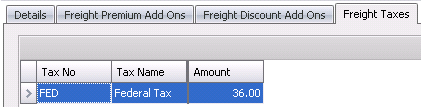
Tax No identifies the tax code to be applied to the product and premiums/discounts for the selected line item. The Taxable flag must be selected in the feed formula and premiums/discounts for taxes to calculate.
Tax Name describes the selected tax code.
Amount is the total amount of tax applicable on the feed formula.
Click  to save the transfer transaction,
and then close the transaction.
to save the transfer transaction,
and then close the transaction.
After the Transfer-Out Facility Transfer has been created, the Transfer-In Facility Transfer needs to be completed. There is an option in Registry> Product Type> Facility Receiving Transfer Mode which will automatically create the Transfer In transaction if selected.
Select the required
transfer-out transaction, right-click, and select 'Receive'. Alternatively,
if the Switch is set to ‘Automatic’, it is not necessary to
right-click, as the transfer-in transaction will be automatically
created. Selecting 'Receive' is only required if automatic switch
is not selected in set-up.
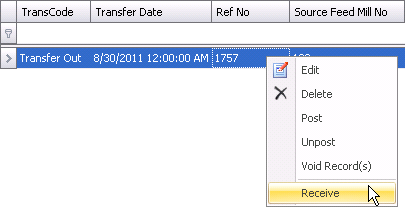
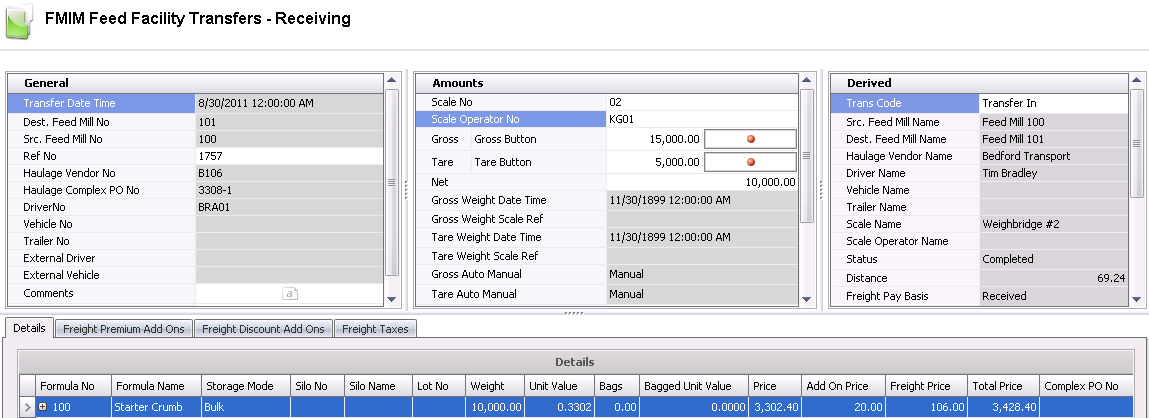
This process will create the transfer-out facility (Receiving transaction). All details in the header and details will derive from the transfer-in transaction.
Save the transaction.
Once the facility transfer has been created and saved, the transfer needs to be posted. The posting process locks the transaction to prevent edits, and creates the journal transaction to record the transfer of costs from one mill to the other. The UnPost option unlocks the transactions and reverses the journal transactions. Feed Formula Facility Transfers can only be posted in if the Global Post period is Active or Reversed.
The posting process creates the journal transaction. The journal process will credit the source feed mill inventory and debit the destination feed mill inventory. The initial journal will credit the source mill for the feed formula at the defined feed formula price and debit the destination mill.
| Debit | Destination Feed Mill | Finished Feed Inventory @ Feed Formula Price |
| Credit | Source Feed Mill | Finished Feed Inventory @ Feed Formula Price |
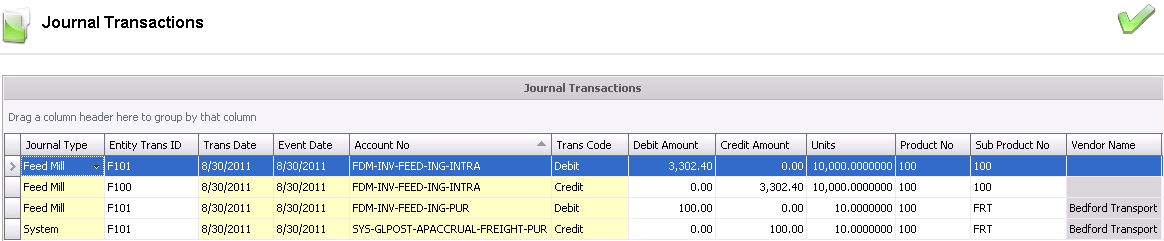
Global post will adjust the source mill for the actual feed formula cost in the period. The destination mill will remain valued at the feed formula price. The only exception to this is feed depots, where there is validation in global post that the feed depots are valued at the end of the global post process allowing the destination transaction to be valued at actual price.
| Debit/Credit | Source Feed Mill | Finished Feed Inventory |
| Credit/Debit | Source Feed Mill | Feed Mill Variance-Transfer Adjustment |