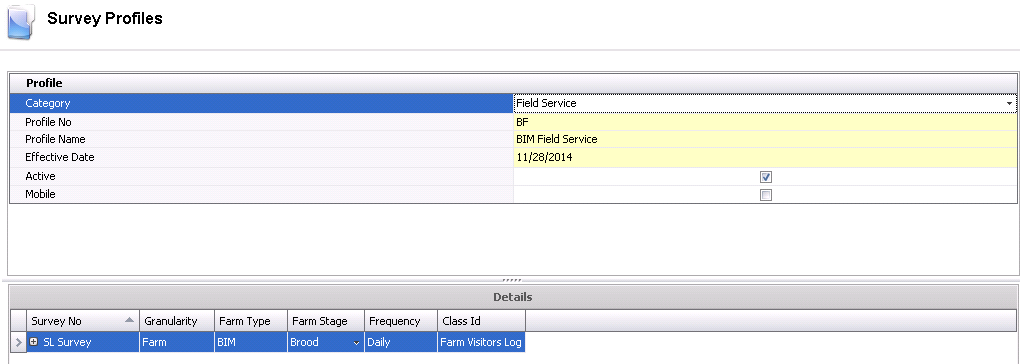
The Profiles screen is used to create the profile for the survey. The Survey must first be created before creating a new profile.
The Profile creation process contains the following components:
In Admin>Business>General>Definitions>Survey, select Profiles.
Select  to
add a new survey record.
to
add a new survey record.
From the Category drop-down menu, select an option to define the type of profile. Available options are: Customer Feedback, Field Service, Grower or Vendor.
In the Profile No, enter a unique code to identify the profile.
In the Profile Name field, enter a description for the profile.
Enter the Effective Date of the profile.
The Active flag will be selected by default. De-select the flag if the survey is no longer active.
Select the Mobile flag if the profile is used for mobile purposes.
Select the Survey No. Surveys must be created beforehand in: Admin>Business>General>Definitions>Survey>Survey.
Select the profile Granularity. Available options are: Entity, Farm, House or Pen.
Select the Farm Type. Available options are: BIM, BRIM, GIM, LIM, SIM or TIM.
Select the Farm Stage. Available options are: Brood, Grow, Lay or Mixed.
Select the Frequency of the survey profile. Available options are: Annually, Biweekly, Daily, Monthly, Quarterly, Semiannually or Weekly.
Select the Class Id.
Click the  button to save
the survey before closing.
button to save
the survey before closing.