
BI Accounts are used for the BI solution and period end reporting. Accounts are grouped together and then used in reporting based on the filters applied to the BI report. For example, Feed Consumed would be comprised of all of the feed consumed accounts in the system and then depending on the data selected for the report, it will calculate the total feed consumed dollars for the data. BI Accounts are sourced from Chart of Accounts Master.
There is a base of system BI Accounts created for use in BI reports. These accounts may need to be modified if there are additional accounts added to the system at the discretion of the user.
The BI Accounts document contains the following sections:
In Admin>Business>General>Chart of Accounts Definition, select BI Accounts.
Set the focus or click in the General section
and select the  button to create a new record.
The General section defines the master account that will be used in the BI Report. The master account will group all of the accounts together that are required to be reported on the BI Report.
Enter a Caption to identify the grouping. This should be a brief description of the account. This field can be used in BI Reports if the system caption is not adequate. Alphanumeric, maximum 50 characters.
Enter a Description to describe the grouping. Alphanumeric, maximum 255 characters.
Enter a Sequence to determine the order that the items will be displayed in the reporting structure.
The Details define the specific accounts that will be used to report the data in the BI solution.
Set the focus or click in the Details section.
Select to
add a new account.
Filter the accounts that are required.
Manually select the required account by checking the Select field or select Options>Select All to add all of the accounts based on the filter applied.
Click OK
Save Record.
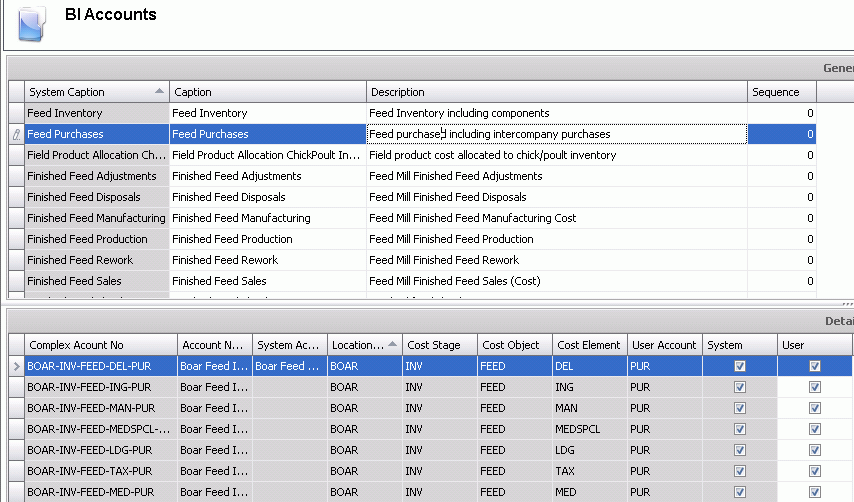
The Editing process is used when the BI Account is previously defined and additional accounts are required to be added or deleted.
Select the required line that is required to be edited.
Set the focus or click in the Details section.
To add a new account, select
Filter the accounts that are required.
Manually select the required accounts by checking the Select field or select Options>Select All to add all of the accounts based on the filter applied.
Click OK
To delete a line, click on the required lines
and right-click to select 
Save Record.