external transfers

External Transfers are created in order to bring products and transactions
into MTech's system from an outside source. This is usually done by interface,
but can be entered manually as well. External transfers are used when
the product purchase and receiving transactions are maintained in an external
system. The external transfer will move the product to MTech in order
for the products and costs to be assigned to other facilities, farms or
entities.
The following procedures are outlined in the External Transfer process.
Create an External Transfer
- In General>Warehouses,
select External Transfers.
- In the Warehouse
External Transfers main index, click
 to create a new external transfer.
- In the New Record dialog box, In
the Trans Date field, enter
the date that the transfer will take place.
- From Warehouse
No, select the required warehouse that will receive the product,
and then click 'OK'.
- In the Warehouse External Transfers screen, click
to
add a new external transfer product.
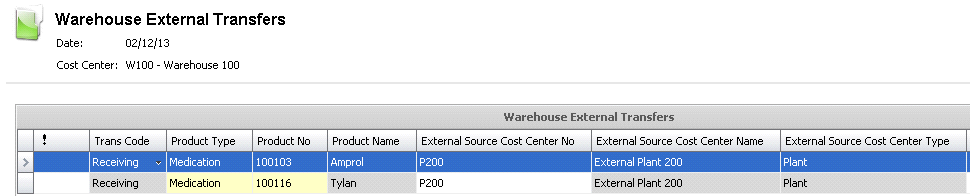
- Trans Code
displays the type of transaction and will default to 'Receiving'.
- From the Product
Type drop-down menu, select the type of product. Available
options are: Field Products, Medication, Semen, or Vaccinations.
- From Product
No, select or enter the pre-defined product number.
- Product Name
defaults from Product No and displays the name of the product.
- From External
Source Cost Center No, select or enter the number of the cost
center from where the product is coming. Cost centers must be set
up prior in: .
- External Source
Cost Center Name defaults and displays the name of the
external source cost center.
- External Source
Cost Center Type defaults according to the selected cost center,
and displays the type of cost center. Available options are: Farm,
Feed Mill, Hatchery, or Plant.

- In the Inventory
Units field, enter the number of inventory units that are being
transferred from the external system to MTech.
- Enter the total Price
of the units.
- Unit Price
is a calculated field and displays the price per unit. Unit Price
= Price/Inventory Units
- Lot No
is an optional unique identification number for the product, and is
generally used for medications and vaccinations.
- Location No
indicates the location where the product is stored.
- Ref No
is an automatically generated unique reference number used to identify
the transfer line.
- Event Date
displays the date the transfer was created, and can be modified if
required.
- Expiration Date
can be defined if there is an expiration date on the product being
transferred in.
- Time displays
the time that the transfer occurs, and can be modified if required.
This field is optional.
- In the Comments
field, enter any additional information related to the transfer transaction.
- Selecting the Void
flag will cancel the external transfer.
- Once the external transfer has been created, click
 to save the transaction.
Post an External Transfer
The posting process locks the transfer to prevent edits, and creates
the journal transaction to record the liability. The UnPost option unlocks
the transfer and reverses the journal transactions.
- In the Warehouse External Transfer index, select
the required product and right-click to select 'Post.' Alternatively,
click the green arrow and select 'Post Record(s).'
- To un-post a transaction, select the required
product and right-click to select 'UnPost' or click the green arrow
and select 'Unpost Record(s).'
Journal
Transaction
The posting process creates the journal transaction. The journal process
will debit the internal warehouse inventory and credit the external inventory/system-offset
account.
| DEBIT |
Warehouse
Inventory |
| CREDIT |
System
Offset Account |
